

How to install Windows 10’s April 2018 Update


The Manual Method
If you are adamant that you want Windows 10’s April 2018 Update right now, you can use Microsoft’s manual update utility to upgrade your system to the latest version of Windows 10.
To use this method, Windows 10 users can go to Microsoft’s official “Download Windows 10” page to either download their official update utility or create new installation media for Windows 10’s Fall Creators version.
Those who want to update their systems should click the “Update now” button to download Microsoft’s Windows 10 Upgrade utility, whereas those who would prefer to do a clean install on their systems should use Microsoft’s Installation Media creation tool. In this guide, we will only cover the use of Microsoft’s Update Utility.
Users who create new installation media will be able to do a fresh install of Windows with Microsoft’s Fall Creators Update pre-installed, though this will be a clean install and will require a completely fresh start. Files will be wiped on your install drive using this method.

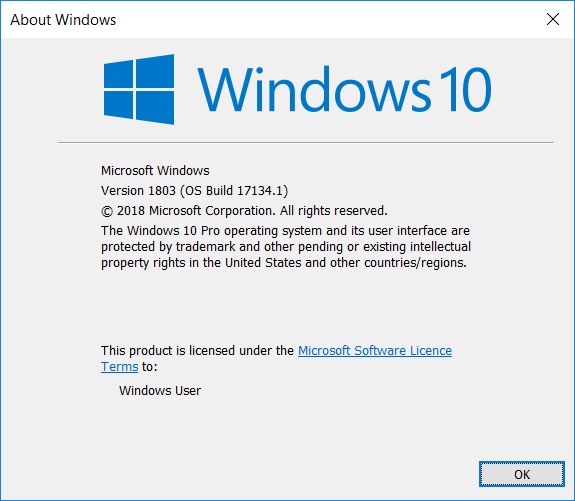
After downloading Microsoft’s Windows 10 Upgrade utility, users can use it to check if there are any new versions of Windows 10 available. The image below shows a PC with Windows 10 version 16299 (Fall Creators) with an indication that a new version called 17134.1 (April 2018) is available.
Clicking on the “Update Now” button will allow users to check if their PC meets Microsoft’s requirements for Windows 10’s April 2018 Update, allowing Microsoft to prevent the update from installing on unsuitable systems.

Users who own compatible systems will be able to download Microsoft’s Windows 10 April 2018 update and start the update’s installation procedure. Microsoft analyses CPU compatibility, memory/DRAM capacity and whether or not users have enough free storage space to update their systems.

When the update is installing users will be greeted with the following page, which shows how close the update is to completion. This process will take some time, though thankfully your PC can still be used during this part of the update process.
After this, users will be told that they have half an hour to restart their systems, as otherwise, Windows 10 will do so automatically. Users can choose to “Restart Later”, which differ the update to when they decide to turn off or reboot their system.

Once the update is ready, you will be able to restart your PC and allow the update to install fully. This process will be much faster than previous Windows 10 iterations, thanks to Microsoft’s efforts to work through most of the OS update while the system is active, lowering system downtime.
After the Windows 10 April 2018 update has finished installing, users should be greeted with a “Welcome to the April Update” Web page on Microsoft Edge, which will give users access to information about the new features that have been added to their OS.
No user files are changed during the installation process, allowing end-users to run their systems as normal after the update.

You can join the discussion on Windows 10’s April 2018 feature update on the OC3D Forums.