


Antec Veris Multimedia Station Premier

Packaging and Front Panel
The Multimedia Station comes in rather attractive packaging, with white text on a background mix of purple and black. The colours work incredibly well together, and are printed on a thick glossy card, which is double walled to protect the precious components inside. The box opens by lifting a flap at the front, which reveals just the remote at first. Two slots at the sides allow you to insert your fingers and lift out a cover, revealing the remainder of the contents.

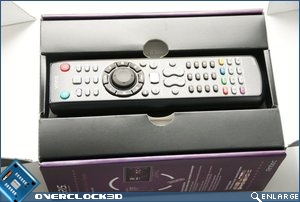
Included in the box you have a 24pin power cable, external to internal USB adaptor, Driver Disc, Instruction manual, 2x AAA batteries and the remote. The remote control is fairly large in the hands, which makes it very difficult to use all of the buttons with just one hand. On the plus side, it does mean that you have all the buttons you could possibly need on the remote, rather than pushing some over onto the drive bay device.


The drive bay itself has a satisfying, quality feel to it. The front is made out of what looks like aluminium at first, but is in fact plastic. However, the plastic is quite thick, so is still nice and sturdy. The knobs on the front give a satisfying amount of resistance, and also have a nice click as they turn- top marks here for Antec. The display takes up most of the upper half, with the buttons and dials taking up the bottom half. On the left there is a small IR receiver, with a large ‘go’ button just above for launching the included iMon software.

The buttons on the front of the display are all fairly self explanatory. The big ‘go’ button located to the left of the LCD launches the iMon software, taking you to the main home screen. The first row of individual buttons (music, videos etc…) all launch the iMon software under that respective category. Finally we have the bottom row of individual buttons, which give you you’re standard media controls such as play, pause, next etc…

In between the dials there is a variety of buttons, giving you basic control over your media. The top row of buttons selects the type of media, whilst the bottom row is used for navigating through media (play, stop, pause etc…). The dials are dual function; rolling them scrolls, and pushing them in selects. The dial on the left, therefore, is used for navigating the menus, with a push on the dial selecting the highlighted sub-menu. The right hand dial is used for volume control, and pushing this one in mutes the sound altogether. The screen itself seems to have a rather clever coating on it: when the device is off, the screen is almost mirror like in reflectivity, yet when the screen comes on, it’s easily visible.


I’m actually quite impressed with the build quality of the Multimedia Station; the plastic gives it a solid and sturdy feel. Undoubtedly aluminium would have looked much nicer, but the cost involved with this would obviously have an effect on the price. The front of the device is well laid out, with a nice amount of space between the buttons, making them easy to use, even if you have larger fingers. The reflective coating rounds it off, making the screen an intriguing part of the Multimedia Station, even when it is off.
