

How to Disable OneDrive in Windows 10


Disabling OneDrive
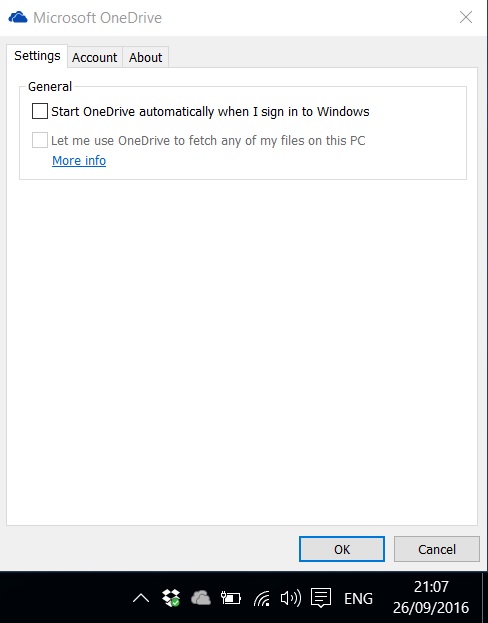
There are several simple ways to prevent OneDrive from booting with Windows, though the simplest is contained within OneDrive itself. All users will need to do is run OneDrive and right click on the applications icon in the Windows Taskbar then select settings.
All Windows 1o users will need to do is run OneDrive and right click on the applications icon in the Windows Taskbar then select settings. Inside the settings menu, under the settings tab, there is an option to untick the Start OneDrive Automatically when I sign in to Windows. Untick this option and then hit OK, then OneDrive will no longer boot with Windows.
This process is completely reversible. On the next page, we will show you how to remove the OneDrive icon from the Windows 10 file explorer.