


AMD Ryzen/Raven Ridge APU Gaming Review

Initial Testing – Stuttering issues and a fix
Update – AMD has released a new AGESA microcode update to address this power management issue. We recommend that all Raven Ridge users update their BIOS with an AGESA 1002a or newer BIOS iteration. On the ASUS B350-Plus we used here the first BIOS update with AGESA 1002a is version 4008.
Our overview of AMD’s AGESA 1002a update is available here.
When looking at Raven Ridge, we wanted to see exactly how well AMD’s APUs performed when playing games which were demanding on both the user’s CPU and GPU, mostly to see how well these units performed when pushed to their limits.
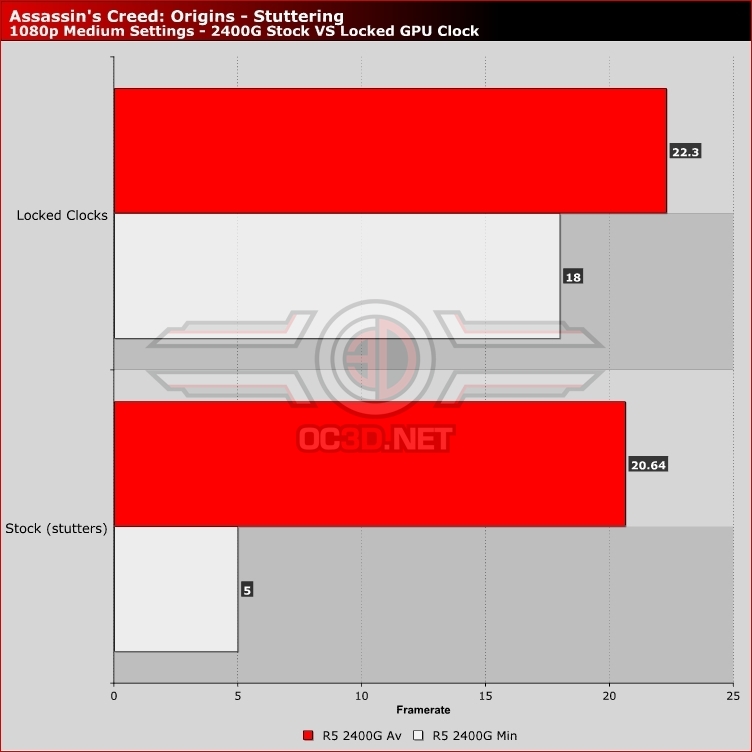
What we found was that AMD’s Ryzen 5 2400G APU suffered from frequent stuttering issues when playing titles which placed a lot of stress on both the CPU and GPU portions of the APU, with Assassin’s Creed Origins acting as a prime example, where frequent stutters would ruin the gameplay experience.
These same stutters can happen in other titles but a lot less frequently, though owners of Assassin’s Creed Origins will know that the game can give both your CPU and GPU a hammering, especially if you are using an AMD GPU.
The same stutters do not occur on the Ryzen 3 2200G, at least not to the same level of frequency, making this a problem that is pretty much exclusive to the Ryzen 5 2400G.
This issue could be addressed by AMD with future BIOS updates, as the problem seems to be caused by Raven Ridge’s power management system
What causes the stuttering? – The Fix!
The stuttering here is caused by rapid GPU clock speed reductions, decreases which cause frametimes to spike, causing a momentary judder in gameplay. This issue is not caused by thermal throttling, with our Ryzen 5 2400G sitting nowhere near the APU’s thermal limit. Even with aftermarket cooling, we found that there were no thermal problems to be had.
Right now it looks like this issue is with Raven Ridge’s power management, though the fix for this issue is relatively straightforward. All Raven Ridge users have to do is to go into their BIOS and tell the APU to run at its stock clock speed, with no voltage adjustment required.
In the case of our Ryzen 5 2400G, the GPU’s stock clock speed is 1240MHz, at least then the GPU isn’t in a low power state. All Raven Ridge users will need to do is enter their BIOS and set the GPU’s clocks to 1240MHz manually. This way the APU will maintain a constant clock speed, with the only disadvantage being that the unit will not enter a low power mode at idle.
On our ASUS B350-PLUS motherboard, this setting is under Ai Tweaker in the motherboard’s advanced mode, where the APU’s “GPU Boost” can be defined. Simply change this setting from Auto to Manual and then change the “GFX clock frequency” to 1240MHz. Below is an image which showcases this setting ins ASUS’ BIOS.
This change will force the APU to maintain a constant clock speed, solving our stuttering issue.

Update – AMD has released a new AGESA microcode update to address this power management issue. We recommend that all Raven Ridge users update their BIOS with an AGESA 1002a or newer BIOS iteration. On the ASUS B350-Plus we used here the first BIOS update with AGESA 1002a is version 4008.
