

High Wattage, Killer Features – MSI MPG Ai1600TS PCIE5 PSU Review

MSI Safeguard+ – A PSU Gamechanger
GPU Safeguard+
With GPU Safeguard+, every pin on a PSU’s 12V-2×6 power connectors is monitored. This monitors their voltage condition and can trigger protection measures if issues are detected. If the current is too uneven across the cable, protection measures are activated. When faults are detected, users will receive a notification on their PC to alert them to the issue. Additionally, an audible alarm will start playing on their PSU. If no action is taken, the PSU will power down the system after three minutes. This should prevent potential cable-burning/melting incidents.
If faults are detected, users can reseat their 12V-2×6 connectors or replace their power cables to address the issue. Safeguard+ ensures that action is taken before any damage is done.
Software and hardware warnings and protection
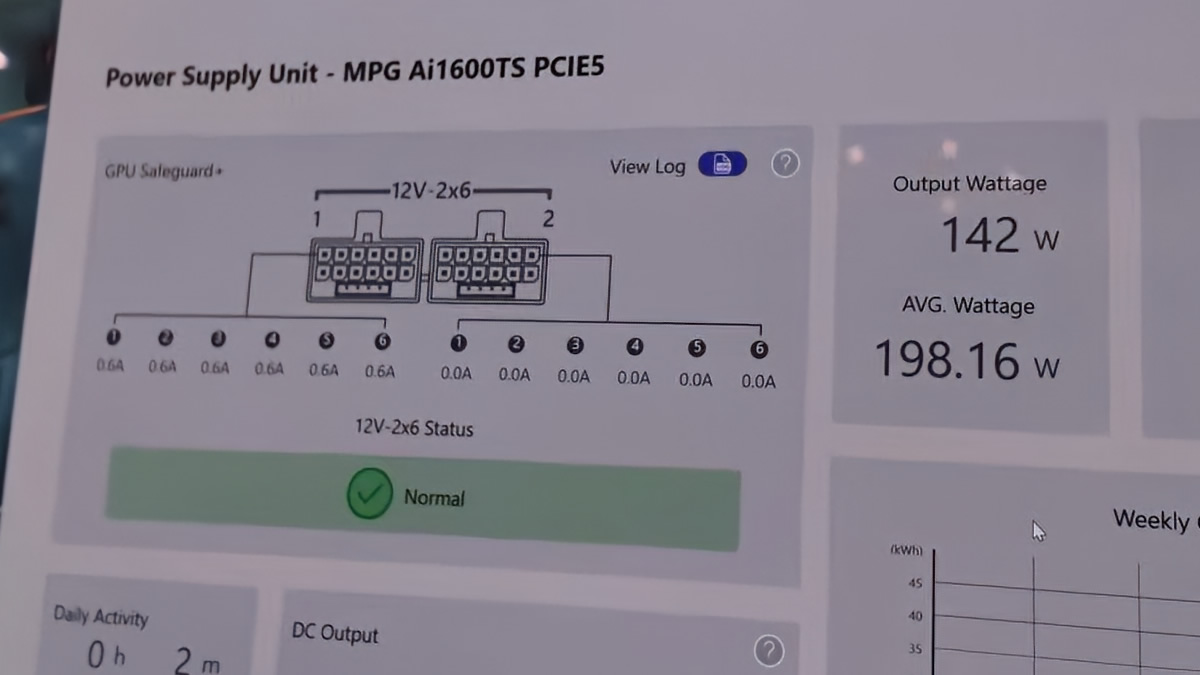
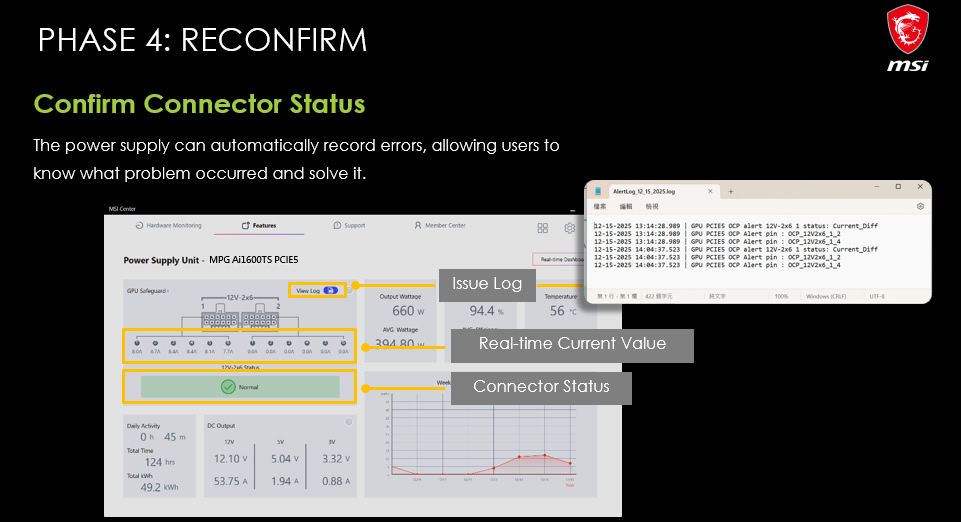
Below, we can see MSI Center measuring the current draw from each cable on a 12V-2×6 power cable. If abnormalities are detected, a warning will be displayed to users. This data is logged for future reference, should users need it.
How Safeguard+ works
MSI’s MPG Ai1600TS PSU features an MCU that monitors current flowing through each pin of a 12V-2×6 power connector. The PSU uses this monitoring data to monitor the system in real time, allowing it to detect anomalies.
When unbalanced electrical currents are detected, a warning phase is activated that will alert users to issues. If sudden current spikes exceed safe limits, instant overcurrent protection is enabled, turning off your system.
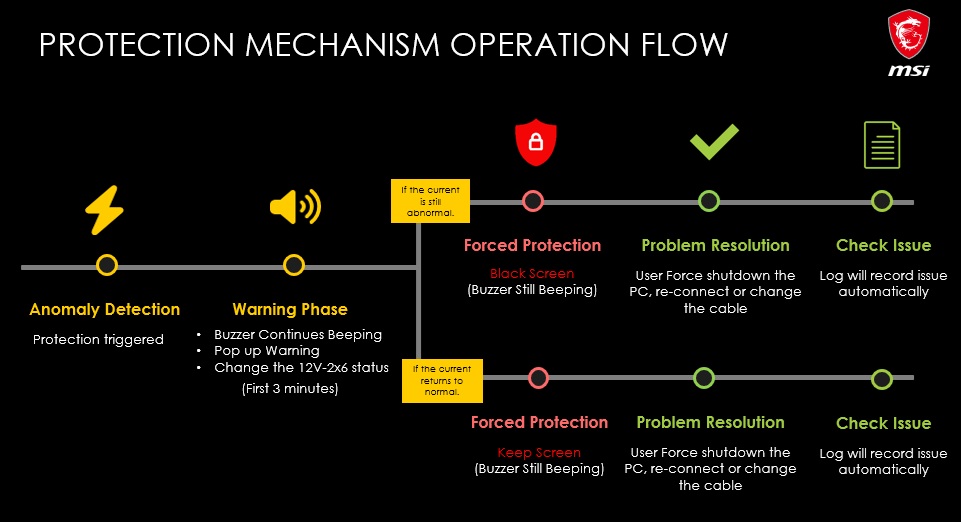
Below is a chart for how Safeguard+ works when an unbalanced electrical current is detected.
Phase 1
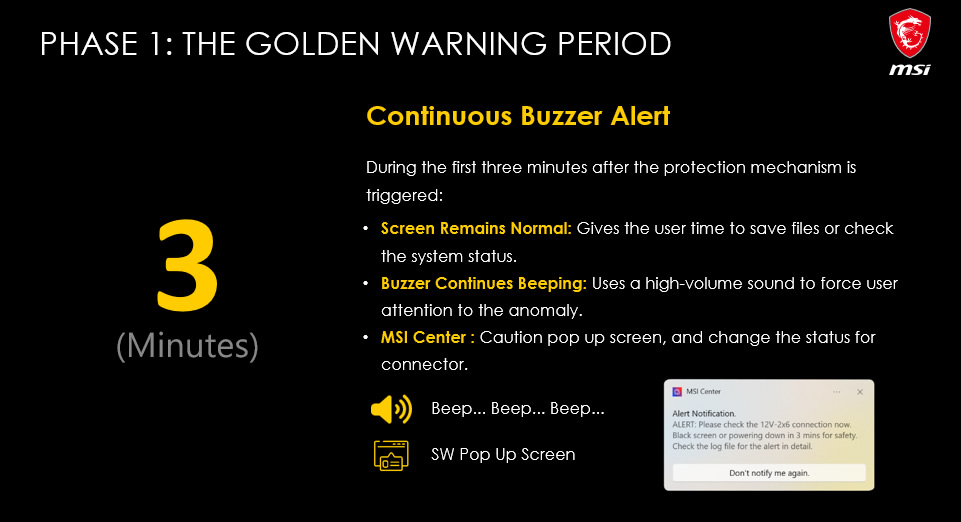
When protection mechanisms are activated, the system will run as normal, but users will see a pop-up alerting them to the error. Additionally, their PSU will start to beep. These two actions should prompt users to save their files and check their system status. This stage lasts for three minutes.
It is worth noting that this alert happens when the error is detected. This means the error is detected before excessive heat buildup occurs. This gives users time to save their work before the system shuts down.
Phase 2
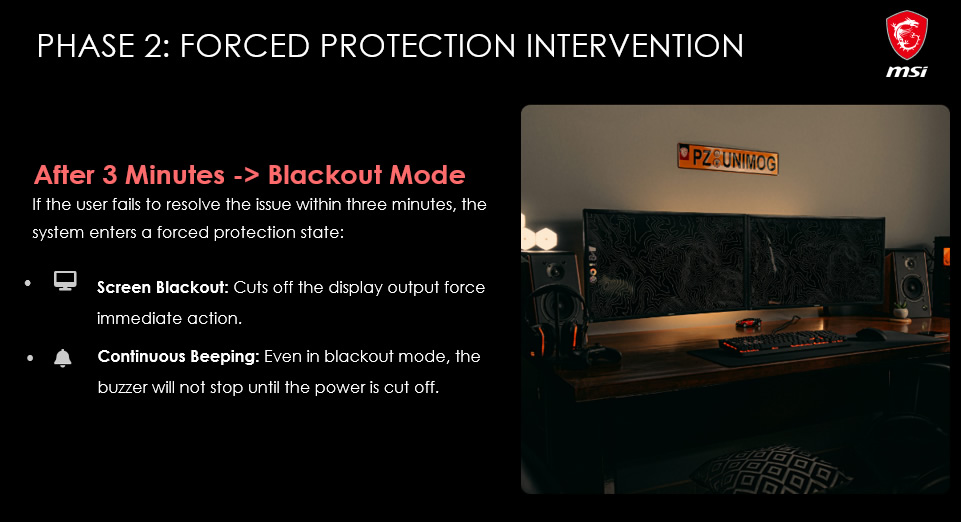
After three minutes, your PSU will enter a forced protection state. Power delivery to your graphics card will cease unless the power anomaly ends. This will cause your screen to black out. Your PSU will continue bleeping during this stage.
Phase 3
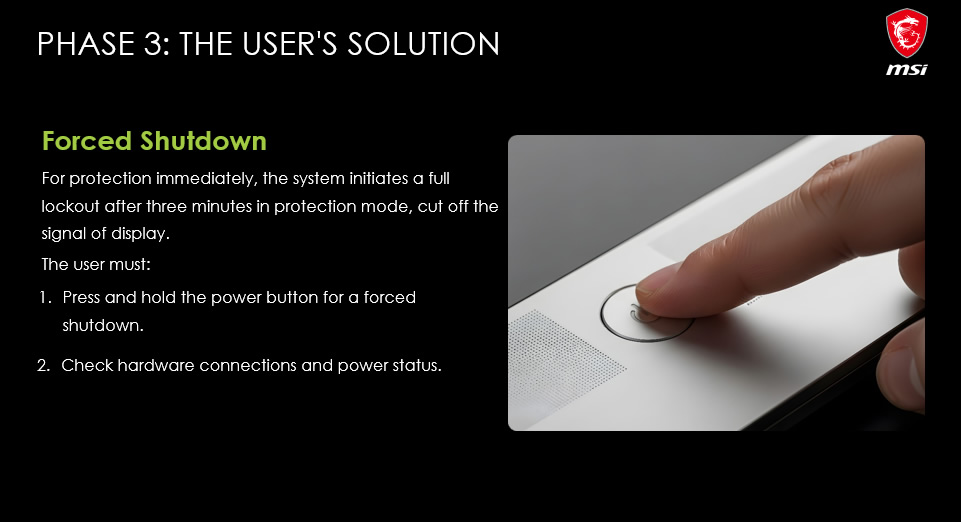
After their system enters protection mode, users should power down their systems using a forced shutdown. After this, users should check the condition of their system. The user should reconnect or replace their 12V-2×6 cables if necessary.
Phase 4
Once users re-enter their system, they can look up their issue log and see what the error was. This will detail which pins were affected and the time when the incident started.
Phase 4
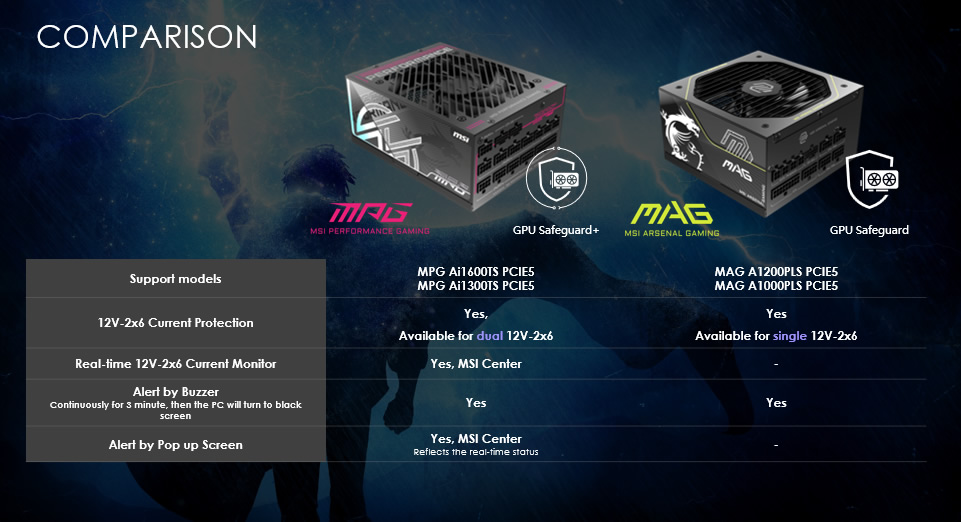
GPU Safeguard+ is available on MSI’s MPG Ai1600TS PCIe5 and Ai1300TS PCIe5 power supplies. This version of Safeguard features MSI center pop-up support alongside “Alert by buzzer” and automatic black screen protection support. With MSI’s lower-end MAG A1200PLS PCIe5 and MAG A1000PLS PCIe5 power supplies, MSI are only offering their “Alert by buzzer” and automatic PC black screen features. These lower-end PSUs lack MSI Center support, making them GPU Safeguard CPUs, not GPU Safeguard+ PSUs