


Tom Clancy’s Ghost Recon Wildlands PC Performance Review

Graphical Options and Settings
For many years, Ubisoft has had a terrible perception from PC gamers, with bug riddled and highly demanding PC releases like Watch Dogs and Assassin’s Creed Unity creating a lot of consumer distrust for the company.
Ubisoft trying to appease PC gamers is nothing new, though it seems that in recent years that the company has been making a genuine effort to improve.
With the release of Ghost Recon Wildlands’, we quickly noticed that the game has an in-depth graphical options menu, offering a wide range of PC related graphical options and both visual and written methods of showing PC gamers exactly what most of the game’s settings do. This is great news for those that want to figure out what exactly each setting does, though an indication of each setting’s performance impact would have been beneficial.
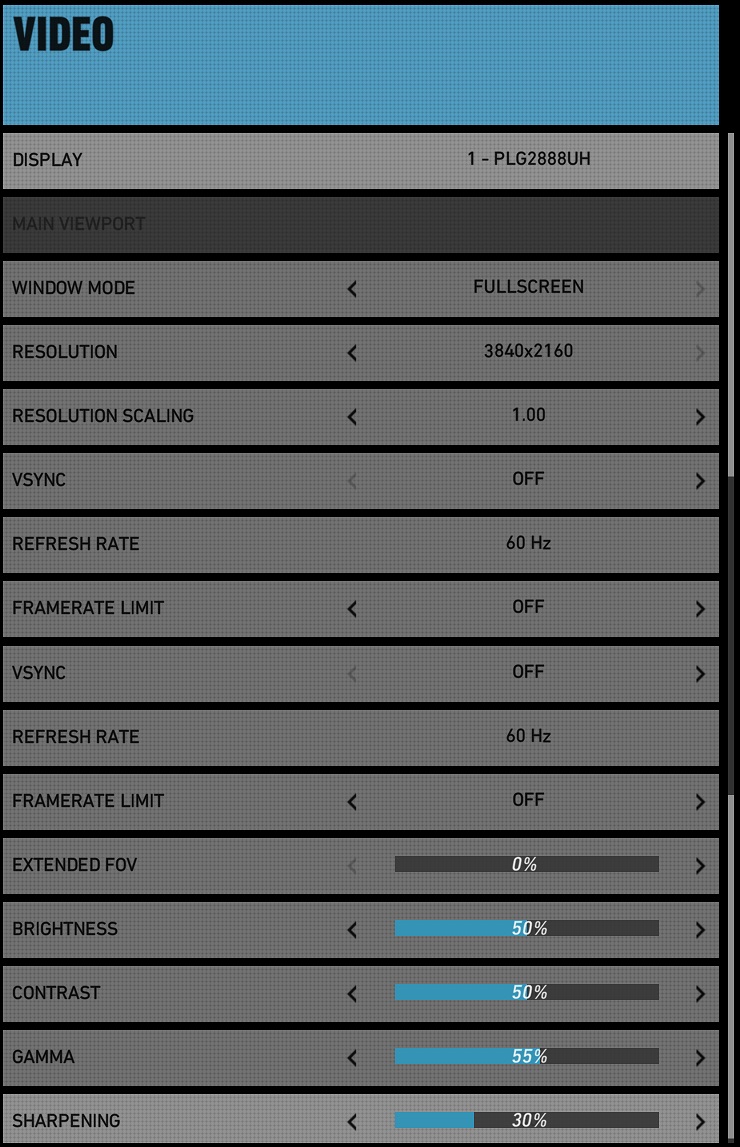
Below is a list of all the graphical options available in Ghost Recon: Wildlands.
Graphical Options
Preset – Low, Medium, High and Very High
Antialiasing – Off, FXAA or Temporal AA
Ambient Occlusion – Off, SSBC or HBAO+
Draw Distance – Low, Medium, High and Very High
Level of Detail – Low, Medium, High and Very High
Texture Quality – Low, Medium, High and Very High
Anisotropic Filtering – 2x, 4x, 8x, 16x
Shadow Quality – Off, Medium, High and Very High
Terrain Quality – Low, Medium, High and Very High
Vegetation Quality – Low, Medium, High and Very High
Turf Effects (Nvidia TurfFX) – On/Off
Motion Blur – Off or On
Iron Sights DOF – Off or On
High Quality DOF – On/Off
Bloom – Off or On
Subsurface Scattering – On or Off
Lens Flare – On or Off
Long Range Shadows – Off, On and Very High
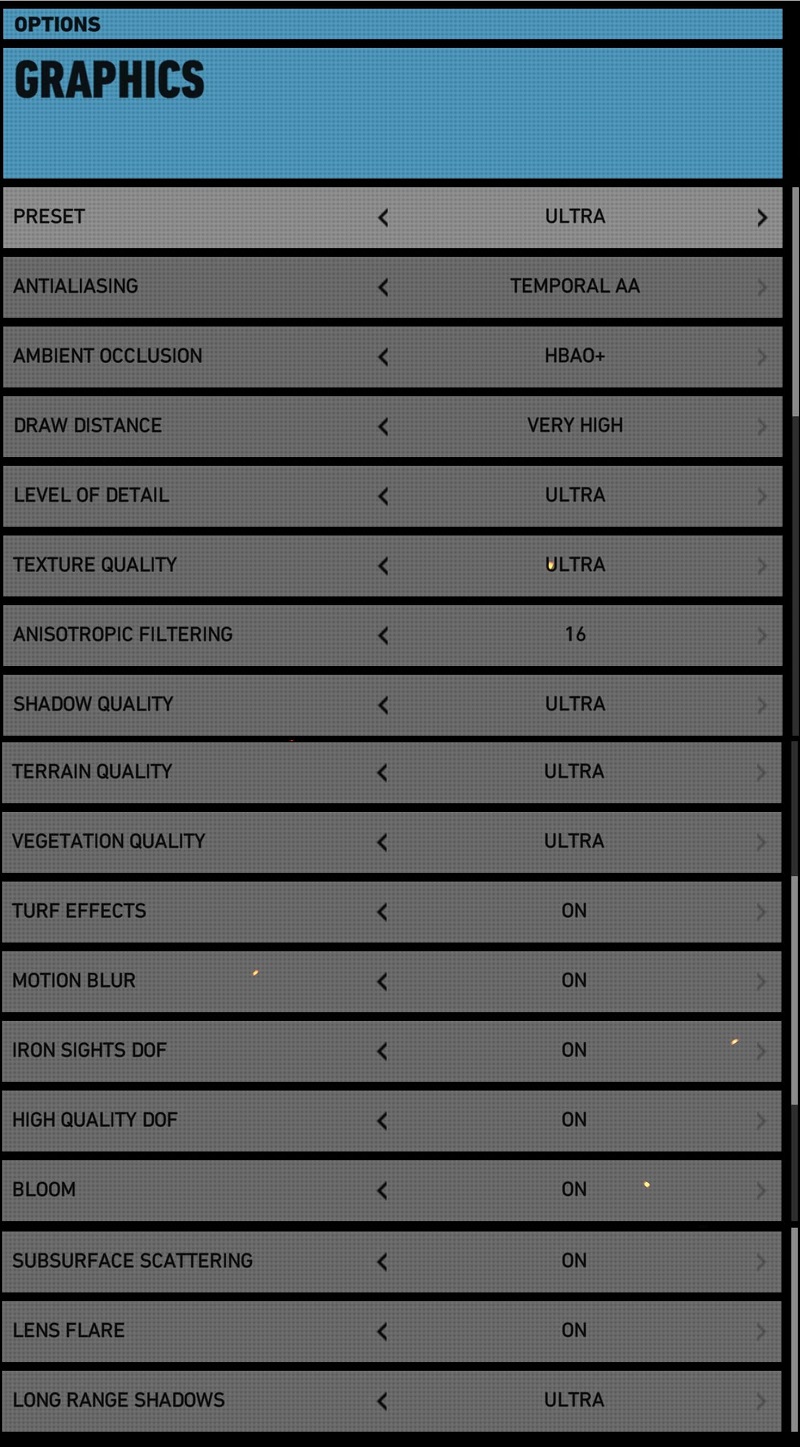
In Ghost Recon: Wildlands, we can see that Ubisoft has put some serious effort into the game’s graphical options menu, with every graphical option coming with individual screenshots that will allow PC players to easily view the visual impact of each graphical quality setting.
This development will allow gamers to determine exactly what settings they wish to use easily determine what graphical settings they want to lower if they want to improve the game’s performance. This can be further improved if Ubisoft details the performance impact of each feature, though this is a great starting point.


(Low Settings (Left) and Medium Settings (Right))


(High Settings (Left) and Very High Settings (Right))
