

MSI X870E MPG Carbon WiFi Review

Up Close
Up Close
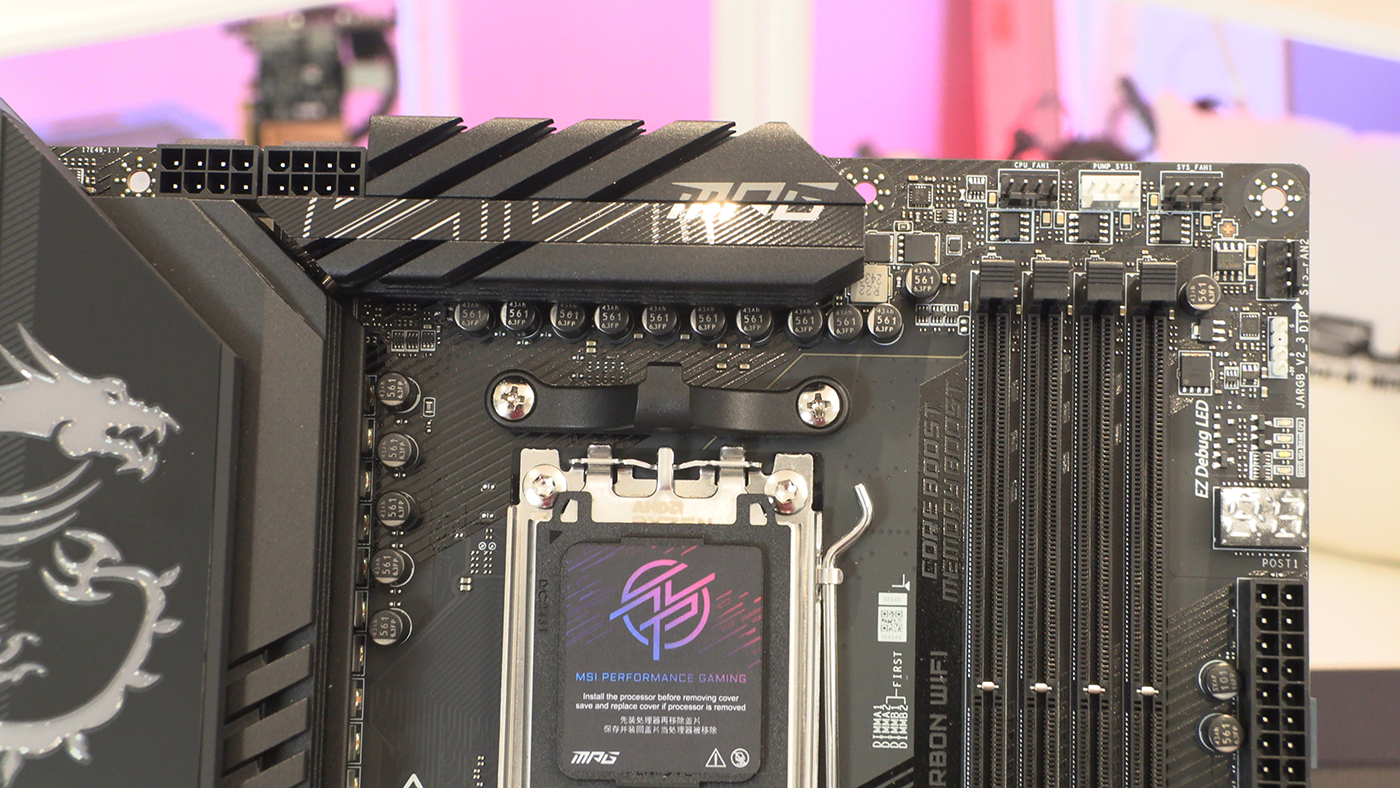
As always the first thing is the two 8pin 12V CPU power inputs in the top left. All very familiar. The top right of the X870E Carbon is, oddly for a motherboard that has had so much effort spent tidying it up, a bit messy. It’s no messier than any other motherboard, not by any stretch. However, when you take into account the triple cable we looked at on the previous page, and the IO section we’ll see on the next, it’s a bit.. normal.
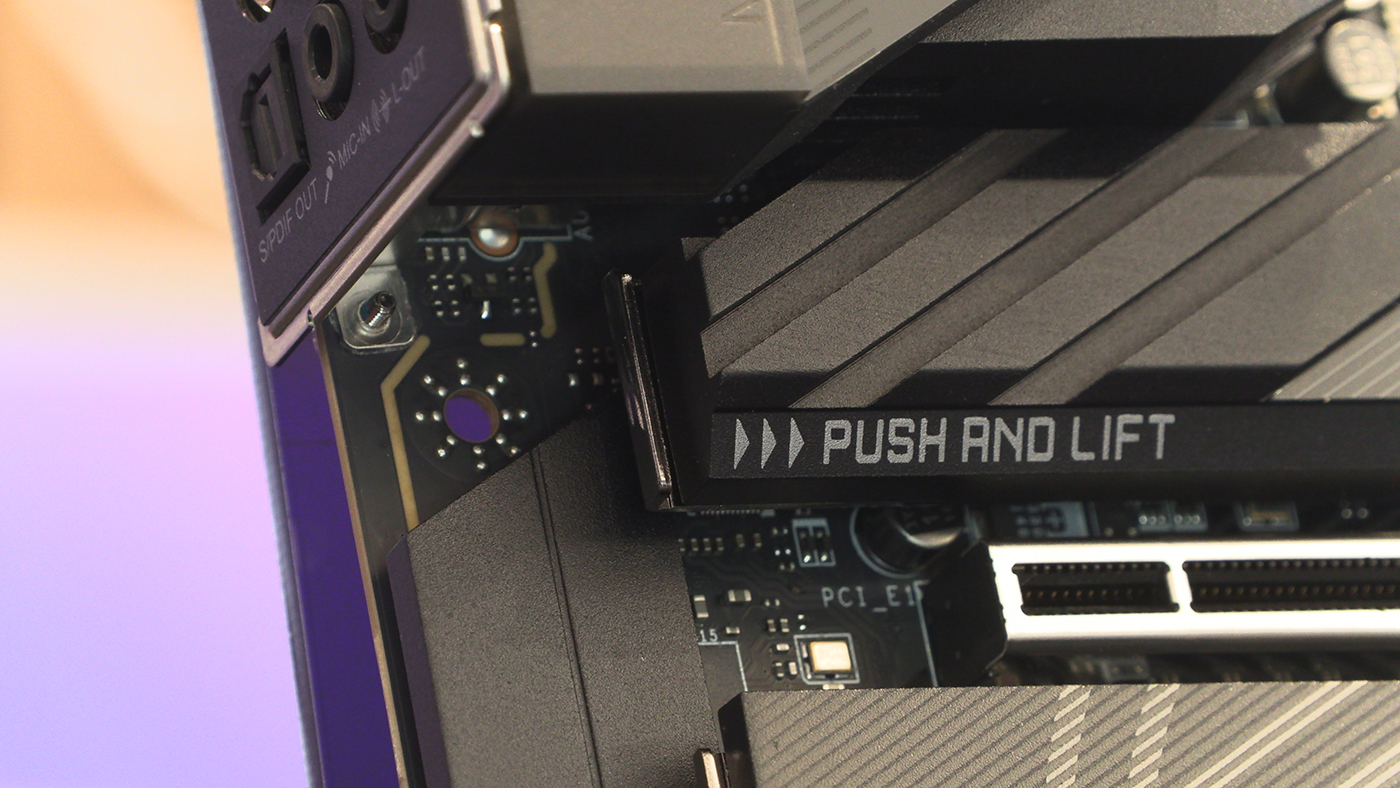
Here is both the EZConn header for the triple cable we showed you earlier. You can also see the easy remove PCI Express button. We loved it when it first appeared, and we’re glad all the manufacturers use it. Especially when you build as many systems as we do. Those with good eyesight will spot the tiny padlock visible that lets you know if your card is fully secured or not.
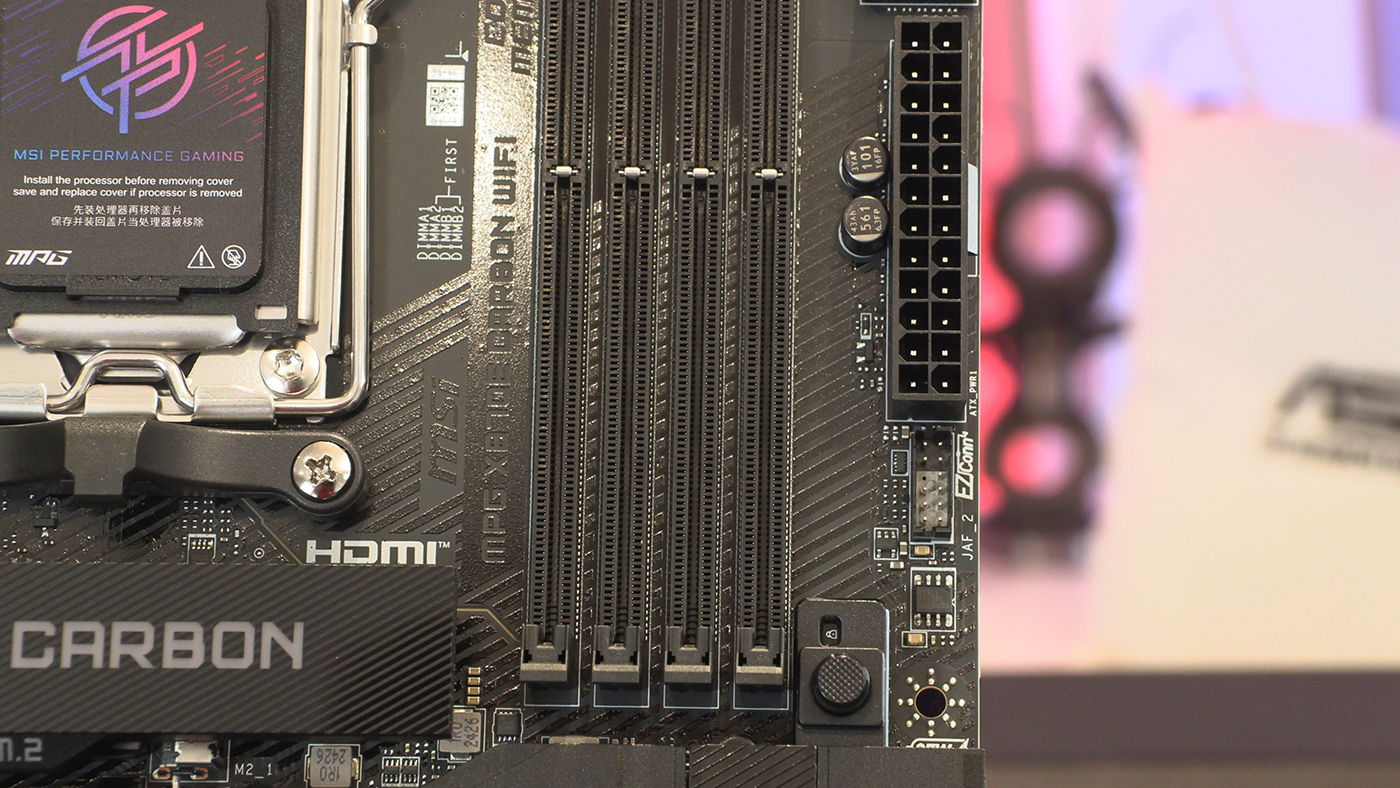
There are plenty of SATA ports and Type-A USB 3 front panel connectors too. Just because you’ve got lots of new toys to play with on the X870E Carbon doesn’t mean older stuff is being ignored.
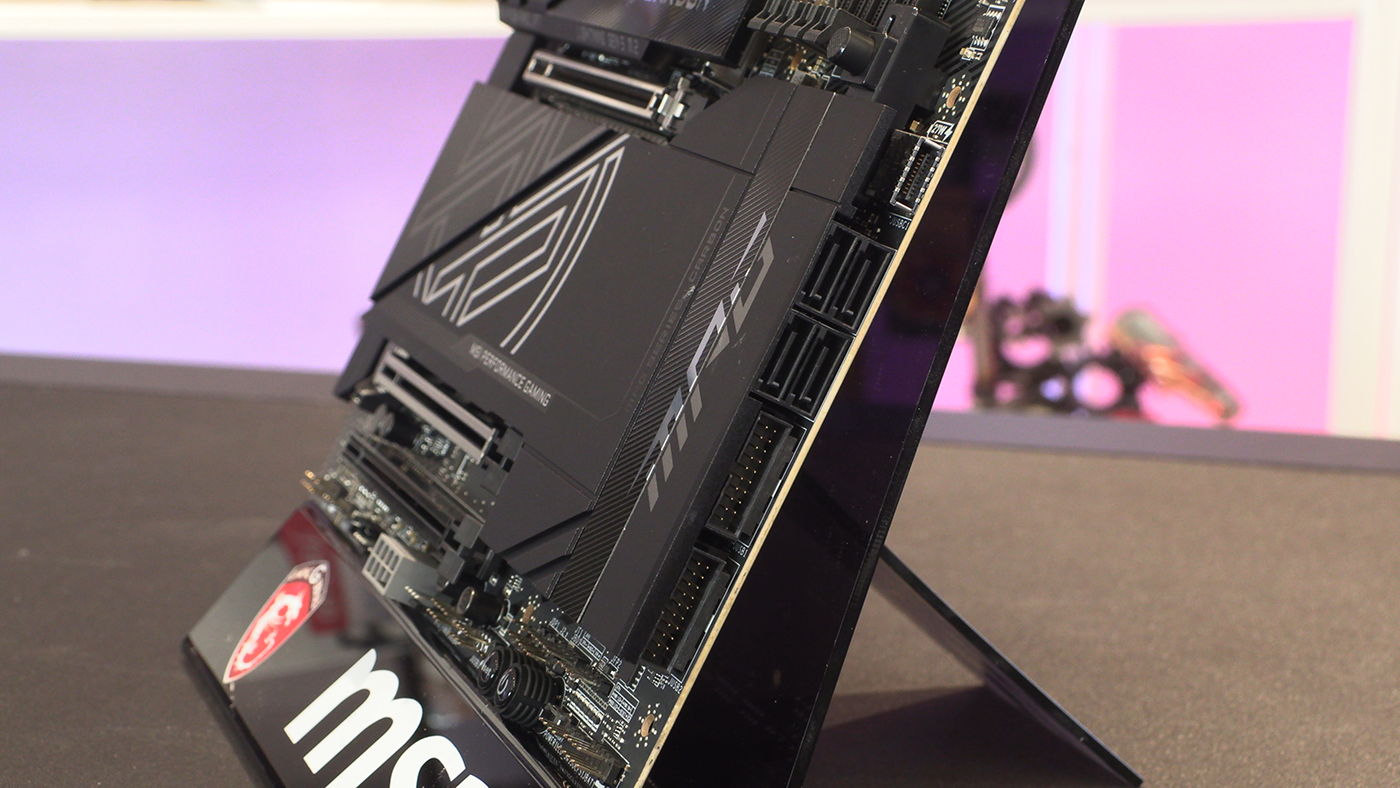
Bottom Edge
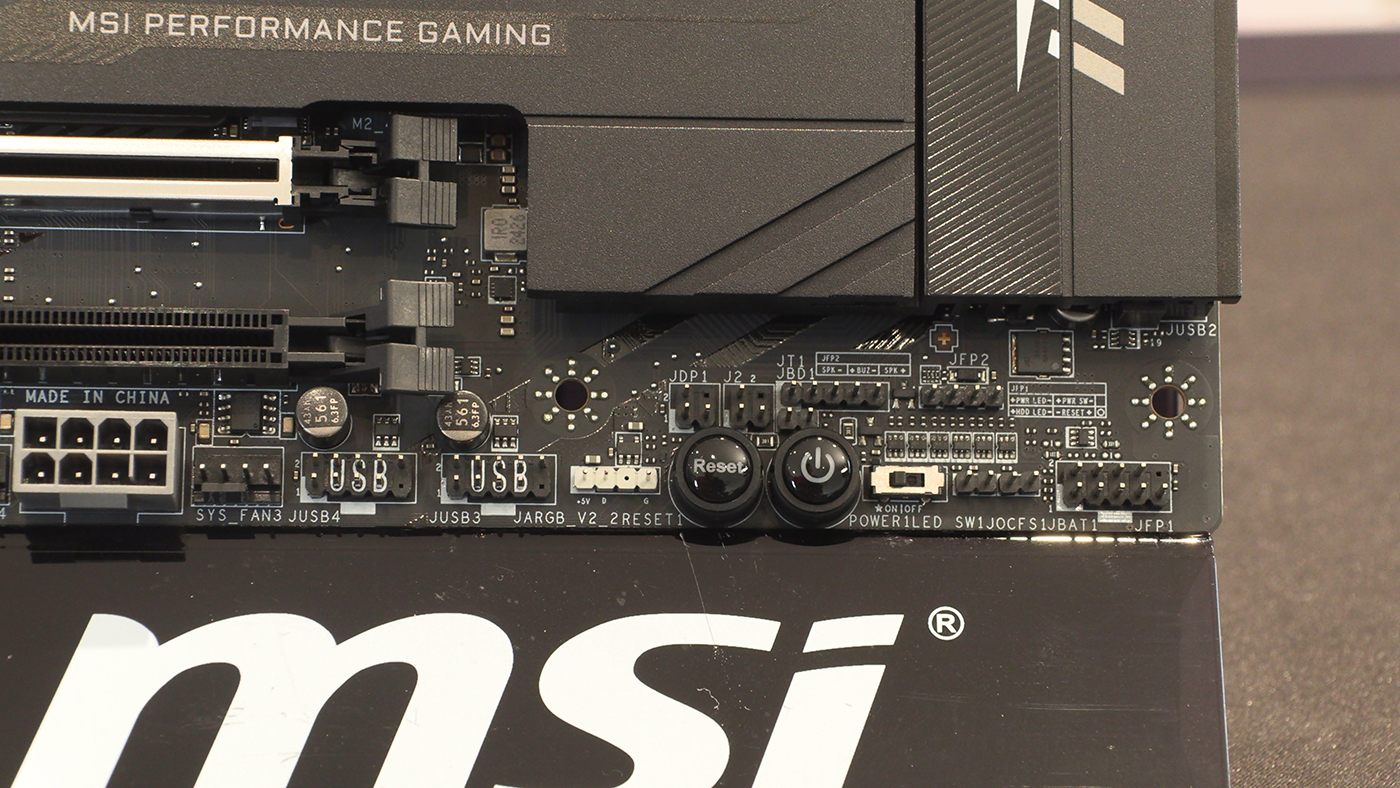
The bottom right hand corner has a regular front panel setup, should you be a luddite and hate the idea of an all-in-0ne cable. We like onboard power and reset buttons. They make our lives so much easier. You can also spy the second ARGB header. #2 of 3.
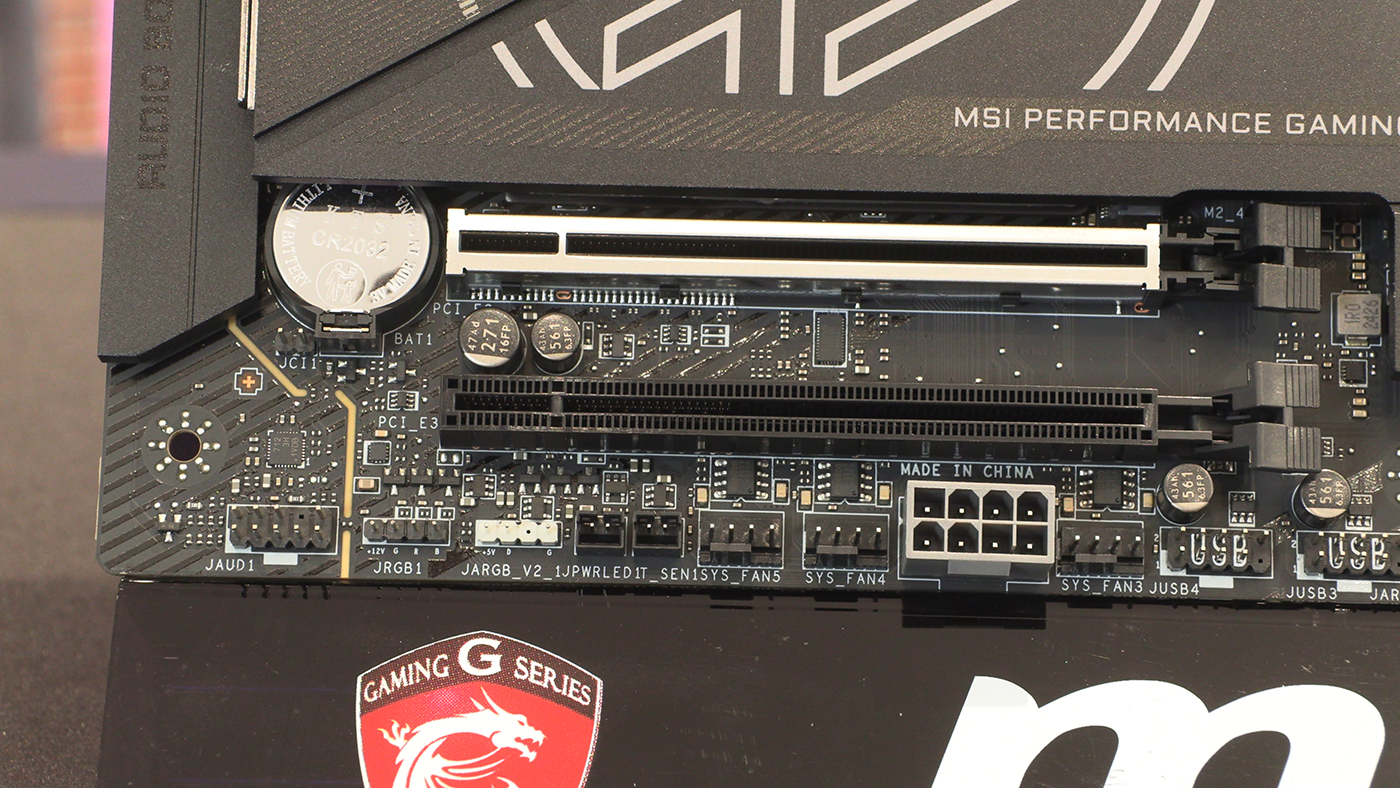
Scooting a little further left and you can see the MSI MPG X870E Carbon WiFi has plenty of fan headers. There is even an additional power connector if you’re really opening the taps. Both RGB and the last ARGB header are here for the Mystic Light ecosystem. The move to ARGB is definitely something that stands out from the X870 update. Even the cheapest motherboard has a 3+1 ARGB/RGB arrangement rather than the 2+2 of old.
The ability to build the MSI X870E Carbon with one hand, a point of emphasis for MSI, is made clear by the way the main M.2 heatsink is removed. Not only no screwdriver needed, no second hand either. Do what you like with the spare one if you have two.
Connectivity and Lighting
Connectivity and Lighting
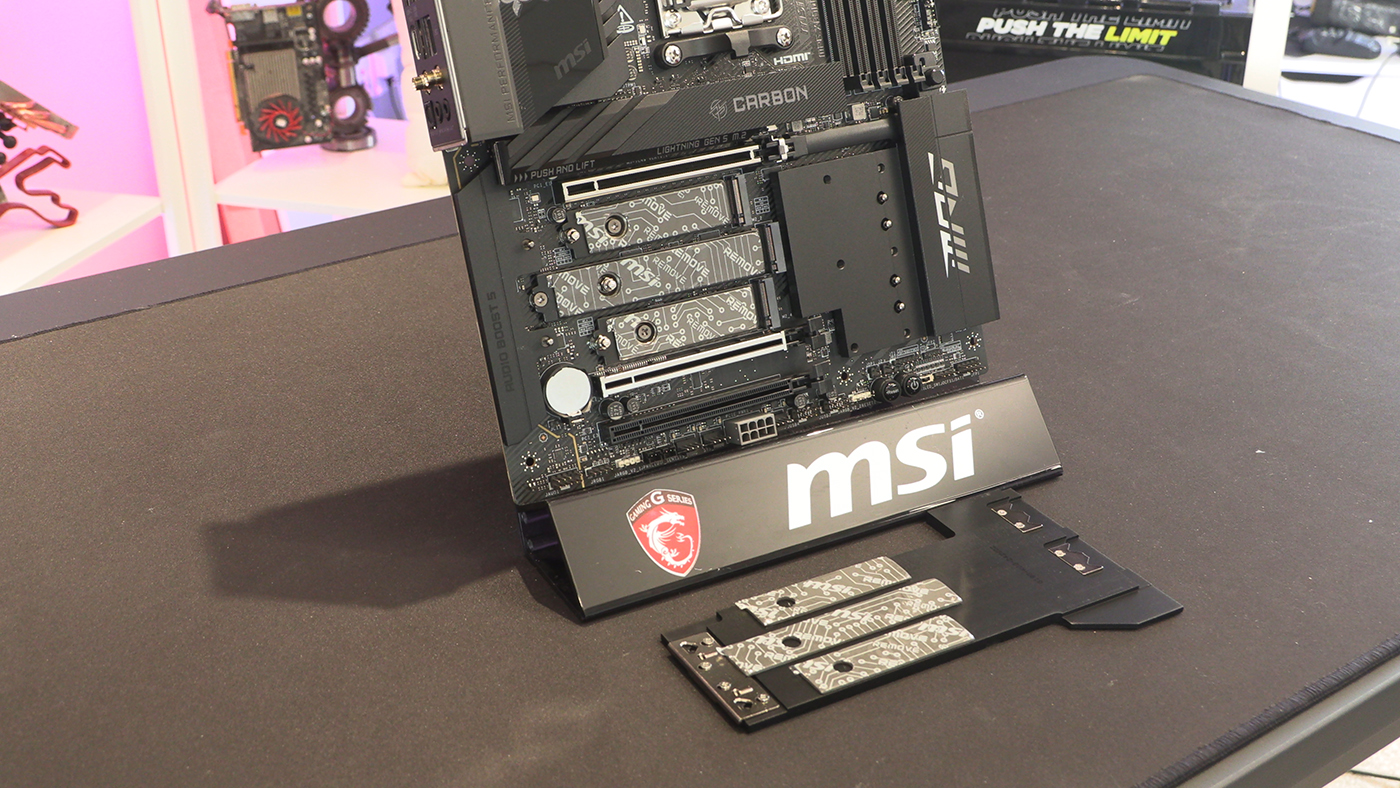
It makes us smile how quickly all the PCB designers came up with this way of using 3 or 4 M.2 slots. There was almost zero quirky solutions. There was never a Video 2000 to the VHS idea of squeezing them between PCI Express slots. Everyone just looked at the setup, decided what was best, and every manufacturer agreed. It’s surprisingly unusual.
Anyway, the MSI X870E Carbon has 2 64Gbps M.2 Gen 4 slots, and two full fat, full speed, 128 Gbps Gen 5 offerings. One of which is under the huge Carbon branded heatsink. We’ve removed it for you in the lower photograph.
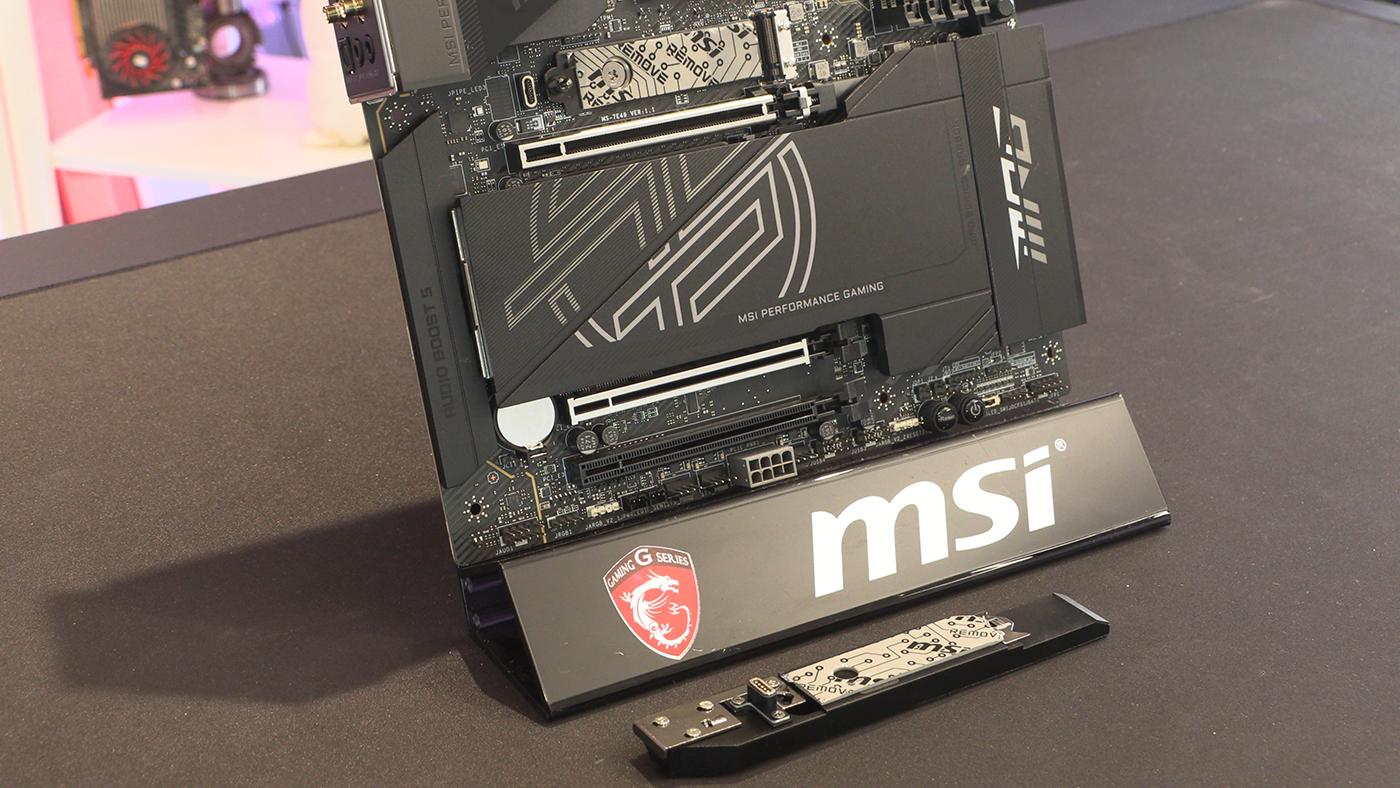
Under the chunky heatsinks there is an 18+2+1 Digital Power Stage with 110A available. Plenty of grunt for even the most demanding user.
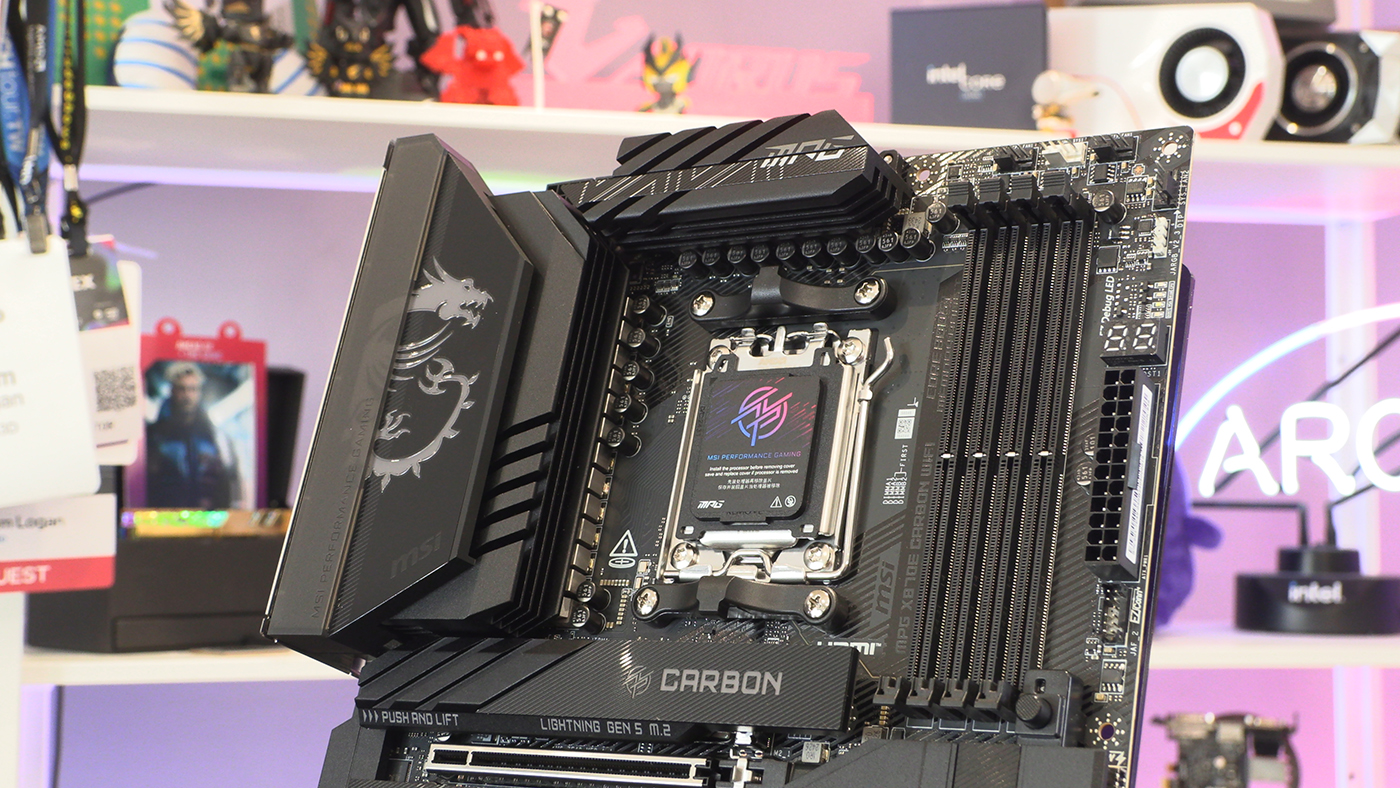
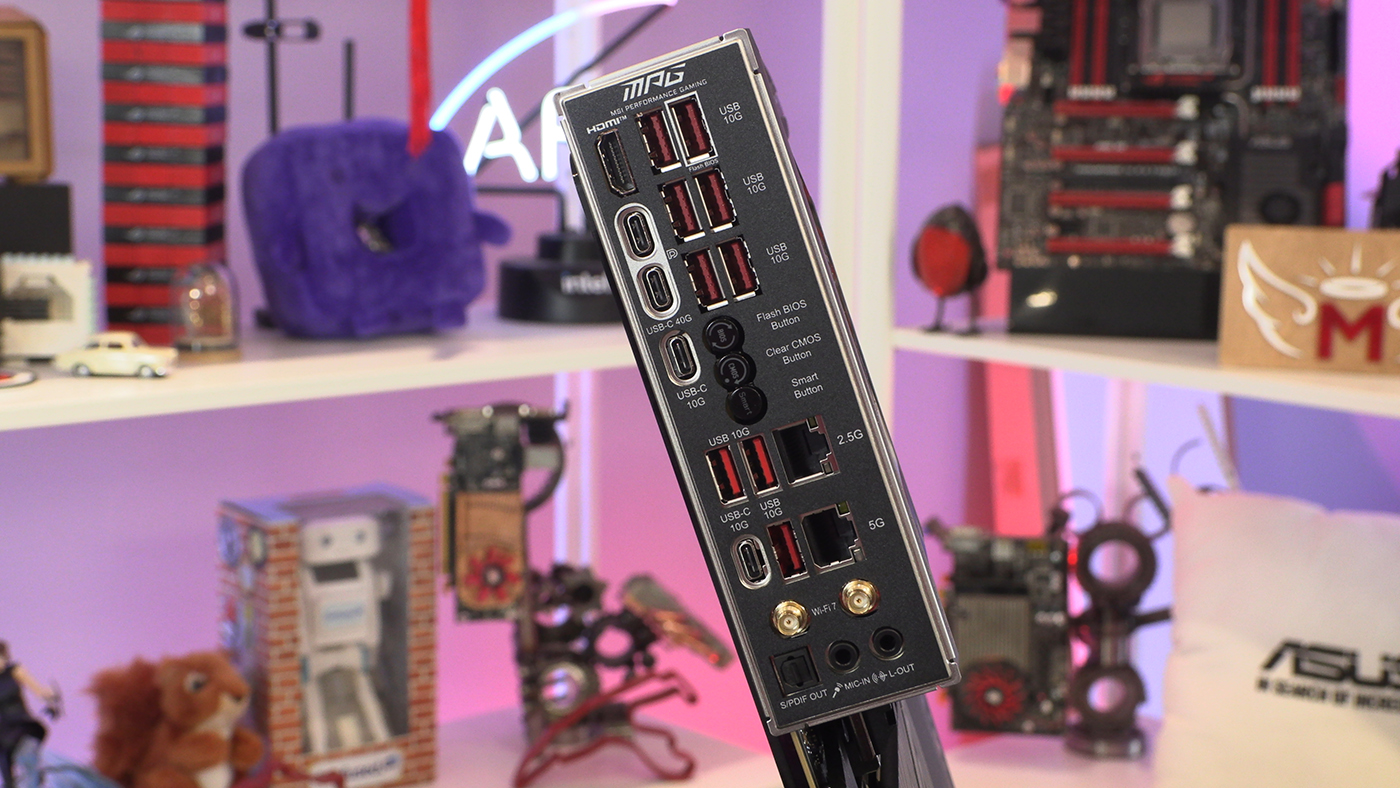
Why have we stuck to the same, top to bottom, “CMOS Button, USBs, LAN, WiFi, Audio” arrangement of decades past? MSIs designers clearly thought they don’t have to and have adjusted the X870E Carbon to fit. We love the clear layout, the obvious placement and grouping of things. We especially like the clear text. No more do you need a photo of the manual on hand all the time to scry some inscrutable hieroglyphics.
Perhaps the only thing we would suggest is to get used to the setup. You don’t want to accidentally poke the Clear CMOS button when trying to plug in a peripheral.
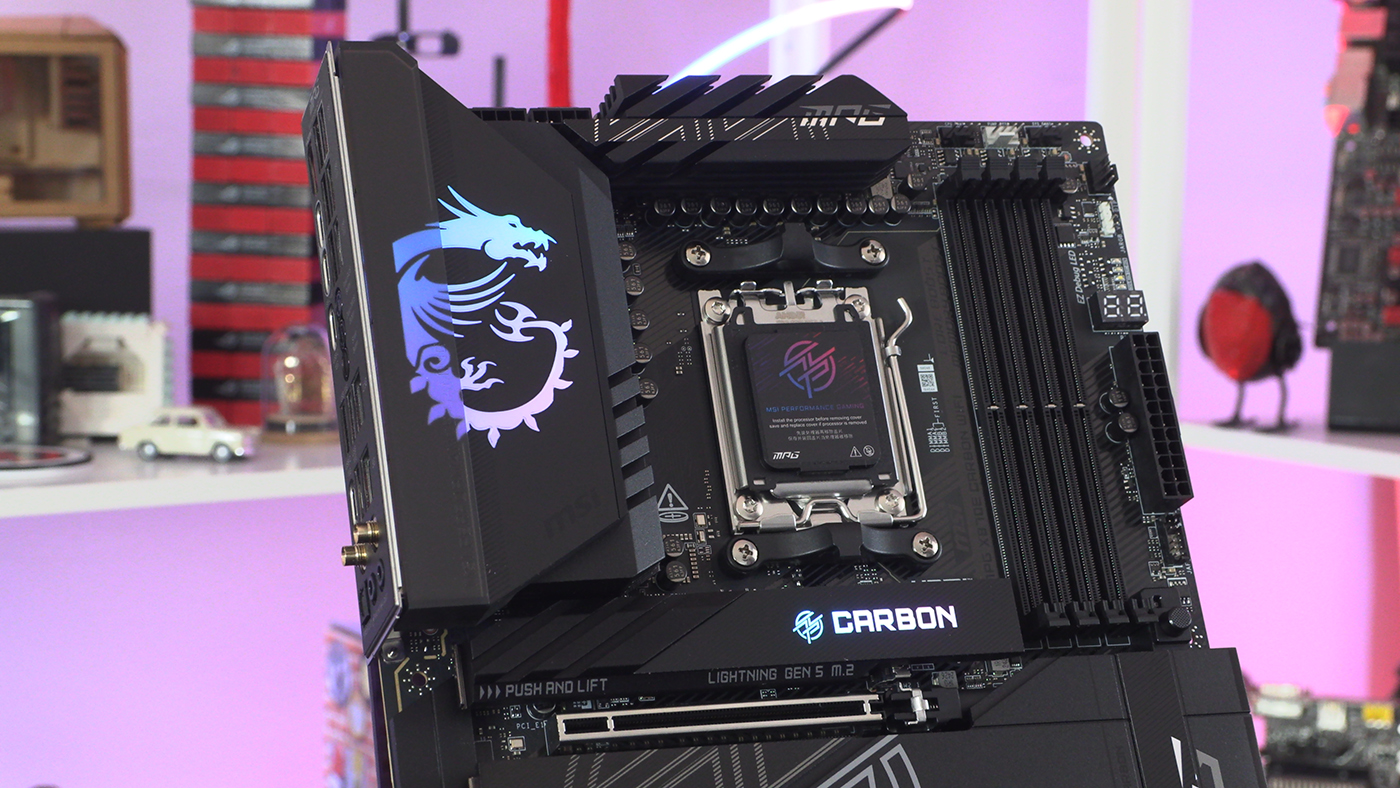
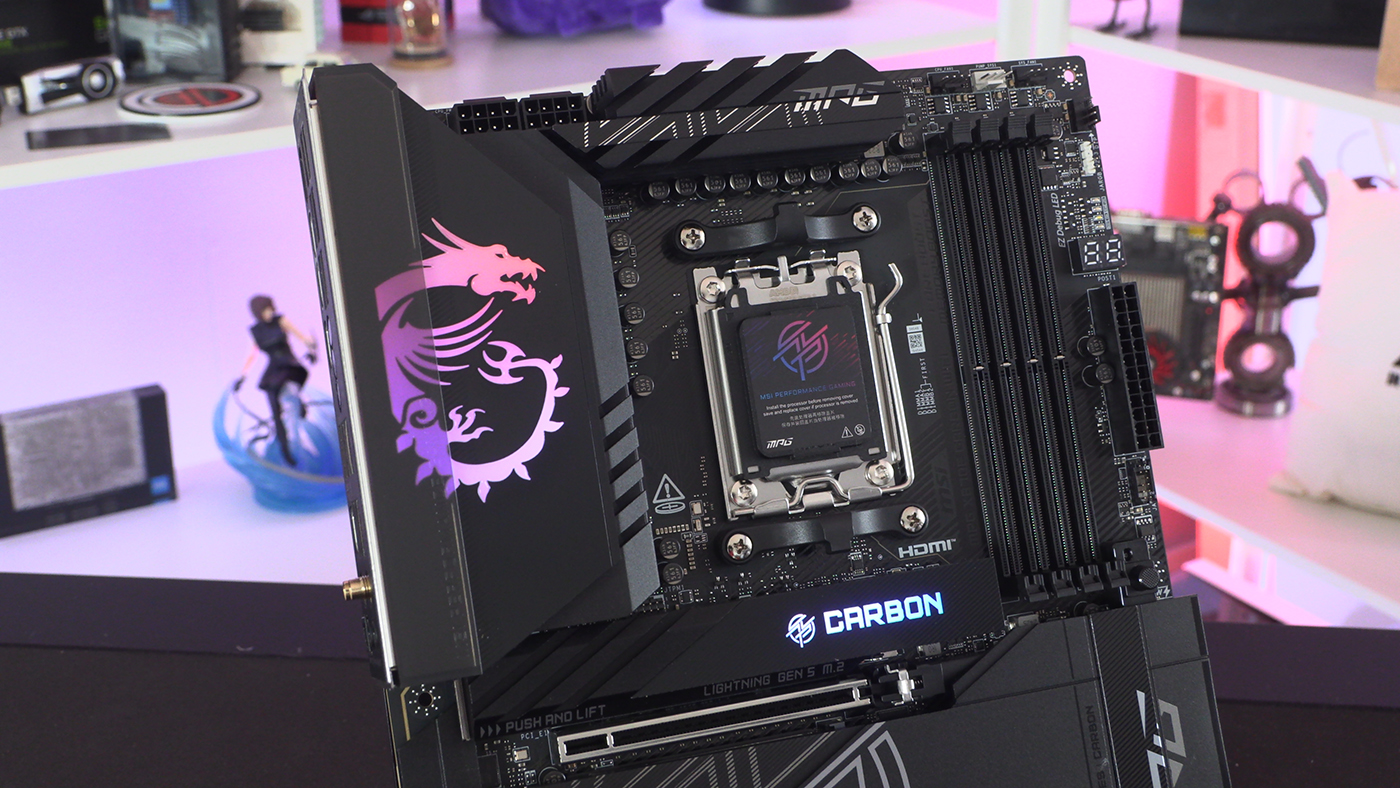
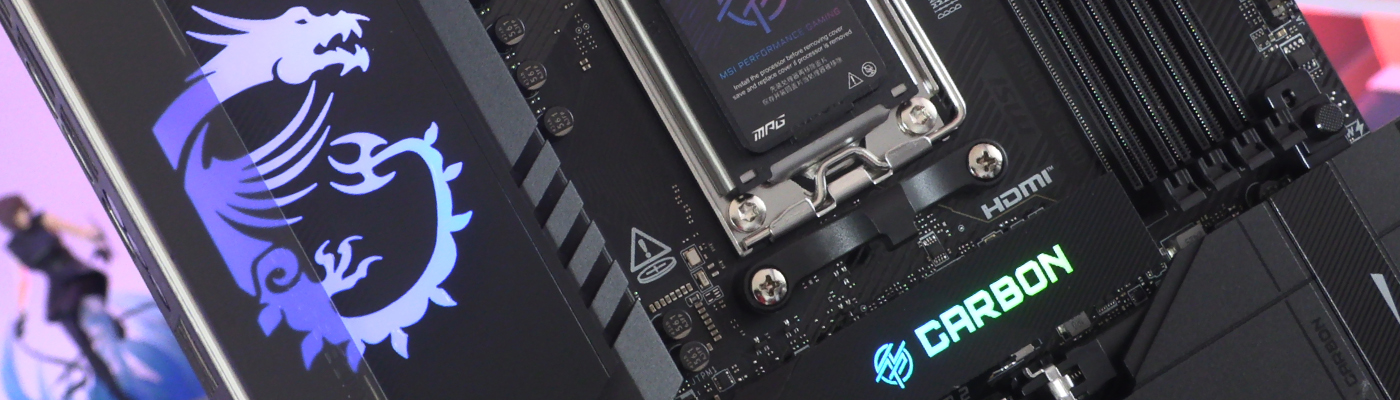
Lastly a little lighting. Regular readers will be used to my vitriolic rants about glitched text and strange pixel effects. The clarity of the Carbon and Dragon logos deserves much applause. Your writer is certainly applauding between sentences. It’s so pretty.