


How to uninstall Windows 10’s built-in Apps

Traditional Method
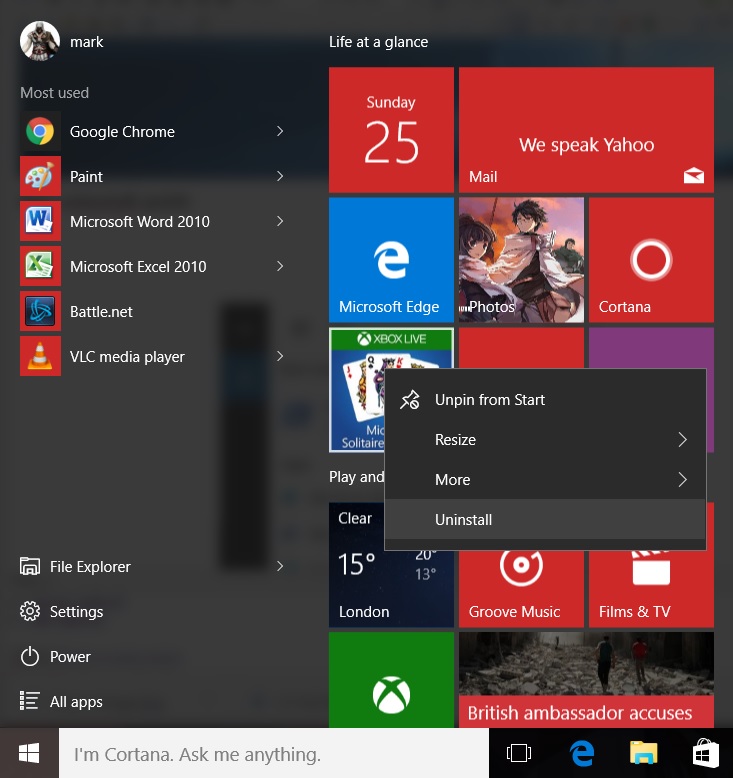
Some applications like “Get Office”, “Get Skype”, “Microsoft Solitaire”, “Candy Crush” and some other applications can be uninstalled using traditional methods.
All that Windows 10 users will need to do to uninstall these applications is to simply enter into the start menu, right-click the target application and select uninstall. If you chosen application cannot be uninstalled via this method you will need to use the PowerShell method, which is detailed below.
PowerShell Method (Advanced)
Using PowerShell most of Windows 10’s applications can be removed, though there are a few notable exceptions like “Cortana”, “Microsoft Edge”, “Windows Feedback” and “Contact Support”. We will list below all known commands that can be used to uninstall Windows 10’s built-in applications.
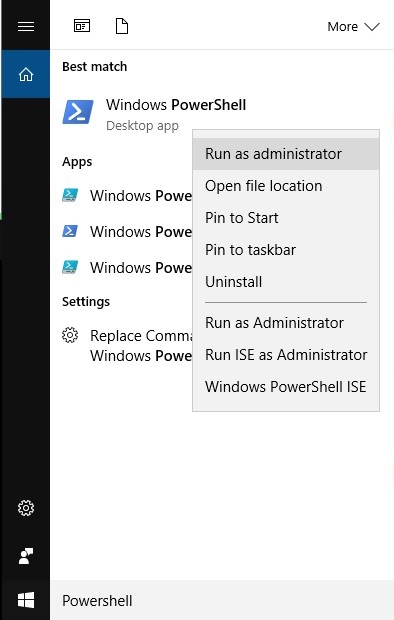
First Windows 10 users will need to open PowerShell as an administrator. Click on the Windows 10 search bar, type in PowerShell, right click on the PowerShell shortcut and then click Run as administrator and then click agree on the UAC prompt.
To remove an application through PowerShell you will need to post one of the appropriate commands into PowerShell and then press enter.
Commands list
Below is a list of all commands that are currently known to us. We plan on updating this list over time with additional applications when/if Microsoft plans on adds more applications to Windows 10 or if we find any applications missing from this list.
Uninstall Get Office
Get-AppxPackage *officehub* | Remove-AppxPackage
Uninstall Get Skype
Get-AppxPackage *skypeapp* | Remove-AppxPackage
Uninstall Get Started
Get-AppxPackage *getstarted* | Remove-AppxPackage
Uninstall Money/Bing Finance
Get-AppxPackage *bingfinance* | Remove-AppxPackage
Uninstall Weather
Get-AppxPackage *bingweather* | Remove-AppxPackage
Uninstall Calculator
Get-AppxPackage *windowscalculator* | Remove-AppxPackage
Uninstall Maps
Get-AppxPackage *windowsmaps* | Remove-AppxPackage
Uninstall Bing News
Get-AppxPackage *bingnews* | Remove-AppxPackage
Uninstall Films & TV (Zune Video)
Get-AppxPackage *zunevideo* | Remove-AppxPackage
Uninstall Groove Music
Get-AppxPackage *zunemusic* | Remove-AppxPackage
Uninstall Calender and Mail
Get-AppxPackage *windowscommunicationsapps* | Remove-AppxPackage
Uninstall One Note
Get-AppxPackage *onenote* | Remove-AppxPackage
Uninstall Camera
Get-AppxPackage *windowscamera* | Remove-AppxPackage
Uninstall the Windows Store
Get-AppxPackage *windowsstore* | Remove-AppxPackage
Uninstall Bing Sports
Get-AppxPackage *bingsports* | Remove-AppxPackage
Uninstall the Xbox App
Get-AppxPackage *xboxapp* | Remove-AppxPackage
Uninstall 3D Builder
Get-AppxPackage *3dbuilder* | Remove-AppxPackage
Uninstall Alarms and Clock
Get-AppxPackage *windowsalarms* | Remove-AppxPackage
Uninstall Microsoft Solitaire Collection
Get-AppxPackage *solitairecollection* | Remove-AppxPackage
Uninstall People
Get-AppxPackage *people* | Remove-AppxPackage
Uninstall Windows Phone Companion App
Get-AppxPackage *windowsphone* | Remove-AppxPackage
Uninstall Voice Recorder
Get-AppxPackage *soundrecorder* | Remove-AppxPackage

