


How to uninstall Windows 10’s built-in Apps

How to Reinstall all Windows 10 Built-in Apps
While right now most of Microsoft’s built-in applications are useless to us, you cannot deny that applications like the Windows Store and the Xbox App may become more useful in the future. Below is a method on how to reinstall Windows 10’s built-in applications, though sadly this will reinstall everything that you have previously deleted.
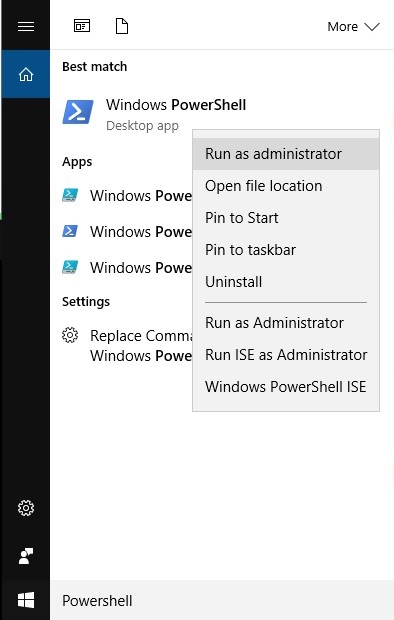
First Windows 10 users will need to open PowerShell as an administrator. Click on the Windows 10 search bar, type in PowerShell, right click on the PowerShell shortcut and then click Run as administrator and then click agree on the UAC prompt.
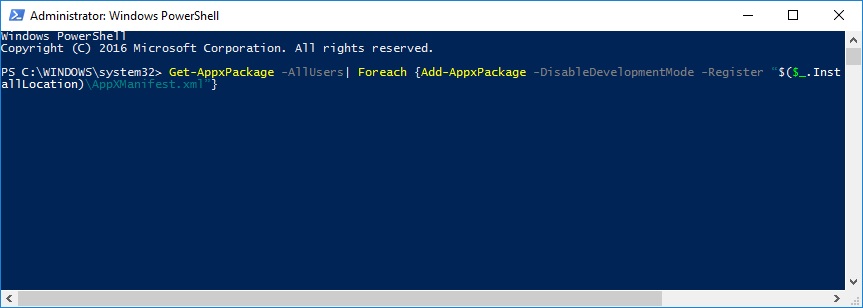
All you will need to do is paste this command into PowerShell and press enter. This will install all of Windows 10’s default applications again, though this may take some time to finish.
Error messages are common when reinstalling Windows 10’s default applications, but after restarting your system you will find that all of Windows 10’s applications default apps have been reinstalled.
Get-AppxPackage -AllUsers| Foreach {Add-AppxPackage -DisableDevelopmentMode -Register “$($_.InstallLocation)AppXManifest.xml”}
You can join the discussion on uninstalling Windows 10 default applications on the OC3D Forums.
